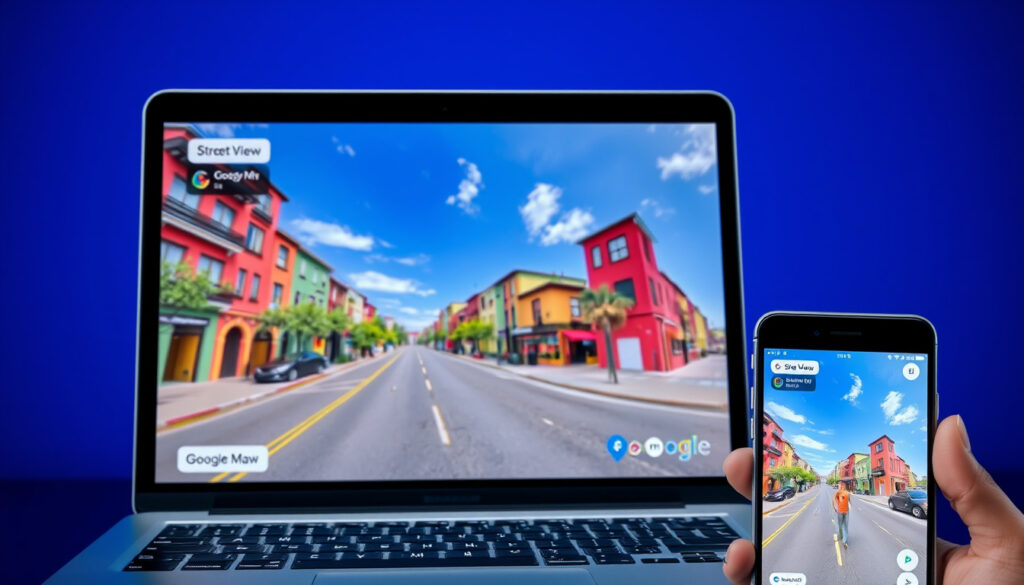
Google Maps Street View: How to View Any Address on PC & Mobile
Google Maps Street View lets you explore 360-degree imagery of any address on desktop and mobile — and most people are surprised by how easy it is once you know where to look. This guide covers every way to access Street View and clears up one big misconception about real-time viewing.
Platforms: Computer, Android, iOS · Coverage: World landmarks, businesses, neighborhoods · Real-time view: Static 360 imagery, not live · Access method: Google Maps search or pegman drag · Mobile support: Dedicated Street View app mode
Quick snapshot
- Street View delivers 360-degree imagery on both desktop and mobile platforms (Business Insider)
- Blue lines on the map signal where Street View is available (Business Insider)
- Street View works inside Google Earth as well as Google Maps (Google Developers)
- Exact update frequency varies by location — Google doesn’t publish a schedule
- Coverage depth in rural areas and smaller countries remains inconsistently documented
- Street View launched in Google Maps around 2007, expanding to mobile by the mid-2010s
- Live View augmented reality arrived as a limited feature in 2019 and has rolled out gradually since
- Google continues expanding community-contributed 360 imagery alongside its fleet-captured content
- Live View availability is expanding country-by-country as mapping coverage improves
The table below summarizes the key technical details of Google Maps Street View.
| Field | Detail |
|---|---|
| Developer | |
| Primary Platforms | Web, Android, iOS |
| Imagery Type | 360-degree panoramas |
| Global Coverage | Landmarks, streets, businesses |
How do I see the Street View of an address?
There are two main ways to pull up Street View for any address: search first, then activate, or grab the pegman and drop it directly on the map. Both methods work on desktop and mobile, though the gestures differ slightly.
Search the address
On desktop, navigate to maps.google.com, type your address or location name into the search bar, and hit Enter. Look for a small photo thumbnail that appears on the left side of the results card — clicking that opens Street View immediately. According to Google’s official support documentation, you can also preview directions in Street View by clicking the Directions button and entering starting and ending destinations.
Drag the pegman
The yellow person icon in the bottom-right corner of the screen is called Pegman — your key to unlocking Street View anywhere on the map. On desktop, click and hold Pegman, then drag it onto blue lines, blue dots, or orange dots that indicate available imagery. Streets highlighted in blue on the map are where Street View coverage exists.
Enter Street View mode
Once inside Street View, you can pan in any direction by dragging your mouse, and the compass arrows to the left and right help you turn to face streets running parallel to your initial view. On mobile, you navigate by swiping the screen or tapping directional arrows that appear over the imagery.
How to show Street View in Google Maps?
Google Maps displays blue lines wherever Street View is available — those lines are your visual cue that you can activate the feature. If you see them, the imagery exists; if you don’t, that area likely hasn’t been captured yet.
On computer
Open Google Maps in your browser and zoom into the area you want to explore. Blue lines trace the routes where 360 imagery exists. Grab Pegman from the bottom-right corner, drag it onto one of those blue lines, and Street View opens at that spot. You can also click the Details button under any route to see more detailed directions with Street View previews woven in.
Blue lines indicator
Those blue traces on the map aren’t just decoration — they’re a live indicator of coverage. The density varies wildly: major city centers might show overlapping routes from multiple passes, while rural roads often show nothing at all. The presence of blue lines doesn’t guarantee recent imagery, just that capture has happened at some point.
Click to enter
On desktop, clicking a blue line or dot activates Street View and centers your view on that location immediately. The transition is instant — no loading screen, no confirmation dialog. On mobile, the interaction model shifts to a tap-based approach that’s equally immediate once you know where to tap.
Street View imagery dates vary significantly by location. A blue line in central Tokyo represents much more recent capture than a blue line in a small rural town, simply because Google’s fleet prioritizes high-traffic areas.
How to see a house in Google Maps?
Want to check out a specific property? The process mirrors any other address search, with one important caveat: you’re looking at static, pre-captured photos, not a live feed.
Zoom to location
Enter the address in Google Maps search, zoom in as close as the map allows, and look for the Street View photo thumbnail or blue coverage lines near that location. If the property falls within a covered area, the imagery will show you the building’s exterior from the street.
Switch to Street View
Use the same pegman method described earlier — drag it onto the nearest blue line to enter Street View, then navigate to face the house directly. You can move the view in any direction by dragging or using the on-screen controls.
Address search
Searching by address works on both desktop and mobile. On mobile devices, tap the small photo box on the left side of the screen after searching to access Street View directly. On Android and iOS, tap-and-hold on a specific spot to place a pin and access Street View at that exact location.
Can you view Google Street View on your phone?
Yes, and the mobile experience is surprisingly close to the desktop version in terms of functionality. The Google Maps app for both Android and iOS supports full Street View access with touch gestures replacing mouse interactions.
Android steps
Open the Google Maps app, search for your desired location, and look for the photo thumbnail on the left side of the search results. Tap it to launch Street View, or tap-and-hold anywhere on the map to drop a pin and access imagery at that spot. You navigate by swiping to pan and tapping directional buttons that appear over the imagery.
iOS steps
The iOS experience mirrors Android almost exactly. Open Google Maps, enter your search, and tap the photo preview that appears in the results card. The same tap-and-hold method works for placing pins at specific locations not tied to a search result.
App download
Google Maps comes pre-installed on most Android devices. On iOS, download it free from the App Store if it’s not already on your device. The app handles Street View natively — no separate download or additional permissions required beyond location services if you want the full navigation experience.
Can I see my house in real time on Google Maps?
This is where many users get tripped up. The short answer is no — Street View does not show live video feeds. But there is a related feature called Live View that comes closer to real-time, with important caveats.
No real-time capability
Standard Street View shows pre-captured 360-degree photos taken by Google’s camera fleet (or community contributors). These images are months or years old in many locations. There’s no option to see your house as it looks right now — no toggle, no live button, nothing that activates real-time capture.
Static vs live
The distinction matters: Street View is an archive of imagery, updated periodically in high-priority areas and rarely in others. Business Insider explains that Live View, by contrast, uses a phone’s camera to display your current surroundings in the viewfinder, then projects directions, arrows, and other navigation cues onto the screen. But Live View isn’t about viewing houses — it’s a walking navigation tool.
Alternatives like Google Earth
Google Earth offers similar Street View access but layers it over 3D terrain visualization. Both apps draw from the same underlying imagery database, so coverage is identical. Neither offers live viewing. For a real-time view of a location, you’d need a dedicated live camera service — Google Maps Street View isn’t that tool.
Live View uses augmented reality to show your actual surroundings, but it only works where Street View coverage already exists — and only for walking directions, not general exploration.
How to access Street View on Google Earth?
Google Earth includes full Street View functionality alongside its 3D terrain and satellite imagery. The access method differs slightly from Google Maps but achieves the same result.
Launch Google Earth and look for Pegman at the bottom of the screen — the same yellow person icon used in Google Maps. In Google Earth, you click Pegman to access Street View in highlighted areas. According to Google Developers documentation, the interface shows blue coverage indicators just like Google Maps, and the navigation controls work identically once you’re inside the imagery.
The advantage Google Earth offers is context: you can switch between Street View and 3D building views seamlessly, which helps orient yourself in areas with complex terrain or unusual street layouts. Both Google Maps and Google Earth draw from the same Street View database, so you won’t find different imagery between them.
Anyone who wants to explore Street View should know it’s available in two official apps from Google, not just Google Maps. Having both tools available means you can choose the interface that fits your workflow — Maps for quick lookups, Earth for geographic context.
How to contribute your own Street View images?
Google doesn’t just rely on its own camera fleet — it accepts community contributions through a dedicated process. If you’ve captured 360-degree photos with compatible hardware, you can add them to the map.
According to the Google Street View official site, users can create and add their own 360-degree images to Google Maps Street View. This requires compatible 360 cameras and the Google Street View app, which handles the upload process. Once approved, your imagery appears on the map alongside Google’s own captures.
The feature expands coverage in areas Google hasn’t reached — hiking trails, small business interiors, remote locations. Contributions are particularly valuable for neighborhoods where official capture hasn’t happened or happened too long ago to reflect current conditions.
Upsides
- Available on both desktop and mobile platforms
- Covers landmarks, museums, arenas, restaurants, and small businesses
- Drag-pegman method works intuitively on desktop
- Blue lines make coverage instantly visible
- Free to use with no account required
- Community contributions expanding coverage continuously
Downsides
- Static imagery only — no live view available
- Update frequency varies wildly by location
- Rural areas often lack coverage entirely
- Live View limited to walking directions in covered areas only
- Imagery may be years old in some locations
- Mobile requires tapping photo thumbnail, not always obvious to new users
Related reading: Shopping Center Near Me Maps
While accessing any address via Street View on PC or mobile, note the service’s extensive Street View in Finland spanning Finnish cities from Hanko to Utsjoki.
Frequently asked questions
Is Google Maps Street View free?
Yes. Street View is a free feature built into Google Maps and Google Earth. No subscription, no payment, no account required for basic exploration. Some third-party apps that layer Street View data may charge, but Google’s own tools are completely free.
How often is Street View updated?
Google doesn’t publish an official update schedule. Major metropolitan areas may see re-captures every year or two, while suburban and rural areas might go a decade without updates. High-traffic tourist areas get priority. The presence of blue lines on the map doesn’t indicate when the imagery was captured.
Can I contribute my own Street View images?
Yes. Google accepts 360-degree photos from compatible cameras through the Google Street View app. After capturing and stitching your images, you upload them through the app. Approved contributions appear on the map and can be explored by anyone using Google Maps or Google Earth.
What is the difference between Street View and satellite view?
Satellite view shows a top-down aerial photograph of an area — like looking from space. Street View shows a ground-level 360-degree panorama you can look around in. You switch between them in Google Maps using the layer controls; they don’t overlap but can orient you to the same location from different angles.
Does Street View work offline?
No. Street View requires an internet connection to load imagery from Google’s servers. Some map regions can be saved offline for navigation, but the 360-degree imagery doesn’t cache locally. You’ll need connectivity to explore Street View, whether on desktop or mobile.
How to exit Street View mode?
On desktop, click the back arrow in the top-left corner or press Escape on your keyboard. On mobile, tap the back button or swipe down from the top of the screen to collapse the Street View panel and return to the standard map view.
Is Street View available worldwide?
Street View coverage exists in most countries but varies significantly by region. Urban areas in North America, Europe, Japan, South Korea, and Australia have extensive coverage. Many countries have limited or no Street View availability, particularly in Africa, Central Asia, and remote rural areas everywhere. Google continues expanding coverage through both fleet capture and community contributions.
You can explore world landmarks and natural wonders, and experience places like museums, arenas, restaurants, and small businesses with Street View in both Google Maps and Google Earth.
— Google Support (Official Google documentation)
Live View uses your phone’s camera to display your current surroundings in the viewfinder, then projects directions, arrows, and other navigation cues onto the screen to show you where to go.
— Business Insider (Technology editorial)
For anyone planning to visit a new neighborhood, check out a restaurant, or take a virtual walk through a city before booking travel, Google Maps Street View remains one of the most practical free tools available. The choice is straightforward: use the pegman on desktop, tap the photo preview on mobile, and know you’re looking at a rich 360-degree archive — not a live window. Those who want real-time imagery will need to look elsewhere; those who want to explore what’s already been captured will find everything they need in Google Maps or Google Earth.
More related posts
 InterContinental Hayman Island: Worth It or Overrated
 Maddie Ziegler: Bio, Net Worth, Dance Moms, and Recent Updates
 Jessica Redmayne: Leaving Home and Away? Age & Career
 Garry Pankhurst: What Happened to Skippy’s Sonny Now
 Face Painting Guide: Safe Paint, Costs & Tips
 Frankie Muniz: From Child Star to NASCAR Driver
 Cafe Cucina Dublin: Menu, Parnell Street Location & Reviews
 Trisha Paytas: Biography, Mental Health, and Net Worth Guide